Top Lords Alliance Calendar Guide
Publish alliance events with sign-up slots, select and confirm Lords, repeat events every week, subscribe on your phone and record attendance.
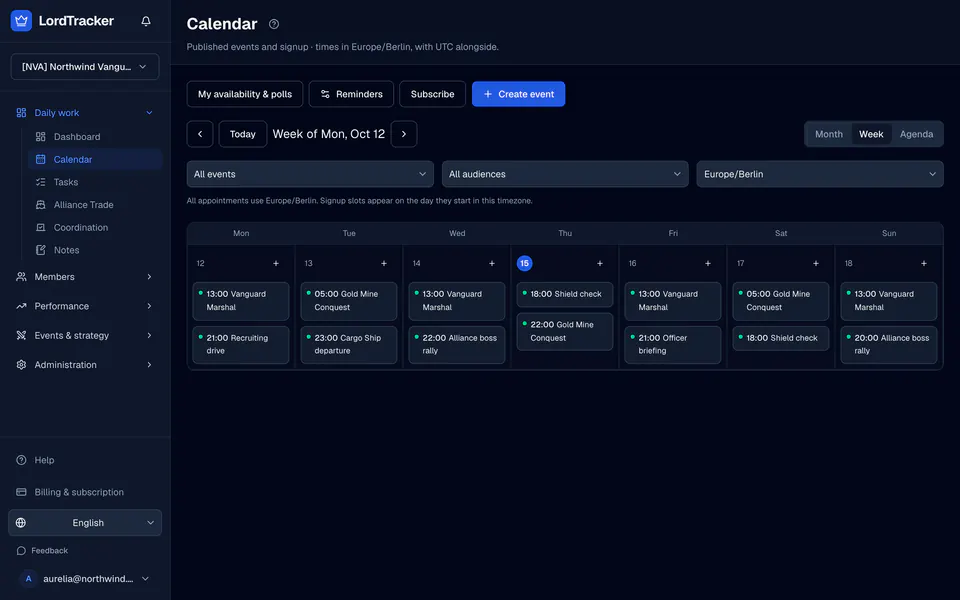
The alliance calendar is where officers announce what is coming and members say whether they can take part. Members need a verified Lord link to sign up; the member guide explains it.
1. Create an event
Open Calendar under Daily work and press Create event.
- Give the event a title and a description.
- Set the start and the end. Enter times in UTC or in your own time zone; switching keeps the same moment. An event lasts at most seven days.
- Choose the audience: every verified Lord, officers only, or Lords you select.
- Add sign-up slots if people should book places. Each slot has its own name, times and capacity from 1 to 500, with an optional waitlist. An announcement can have no slots.
- Optionally set when sign-ups open and close, and how long before a slot check-in opens. The default is 30 minutes.
The event starts as a draft that only officers see.
2. Repeat it
Choose Once, Daily or Weekly on chosen weekdays, with an interval and an end date or a number of events. A series ends within one year. Every occurrence keeps its own sign-ups. When you edit a series event, choose whether the change applies to this event, this and the following events, or all future events. Skip this occurrence cancels one occurrence and keeps its history.
3. Publish
Press Publish event, or Publish future series drafts for a series. Everyone in the audience gets one notice in the app, and members who turned on calendar push get it on their phone too. Publishing the same event again sends nothing new.
4. Select and confirm
Members sign up for the slots they want. When a slot is full, new sign-ups join its waitlist, and the longest-waiting eligible Lord moves up when a place frees up.
- Open the event and select the booked Lords who should play.
- Each selected Lord gets one request and confirms or declines.
- Check-in opens at the configured time before the slot and closes when the slot ends.
Release place withdraws a booking and frees the place for the waitlist.
5. Link a battle, run or Trade day
Link the event to a battle, a custom event run or an Alliance Trade day. The calendar only stores the link: a Trade link shows that day's Captain and escorts, and a battle link shows its status. After attendance is final, Sync attendance to battle copies the recorded attendance to Lords already on the battle's roster.
6. Record attendance
After the last slot ends, record attended, no-show or excused for the selected Lords. Nothing is assumed from sign-ups, confirmations or time passing, and Lords you leave out stay unknown. You can correct attendance later.
7. Help members keep up
Members see every time in their own time zone with UTC beside it. Subscribe creates a private calendar link that members add to their phone's calendar app; it shows their own sign-up state and can be revoked. In account settings, members choose in-app notices, push and a daily digest, and the time zone of that digest.
Coordination polls and usual availability help you find a time first: see the polls guide. The alliance calendar page gives the overview.