Top Lords Alliance Polls and Availability
Ask your alliance questions with polls, collect members' usual playing hours and preview who is available before you set the time of an event.
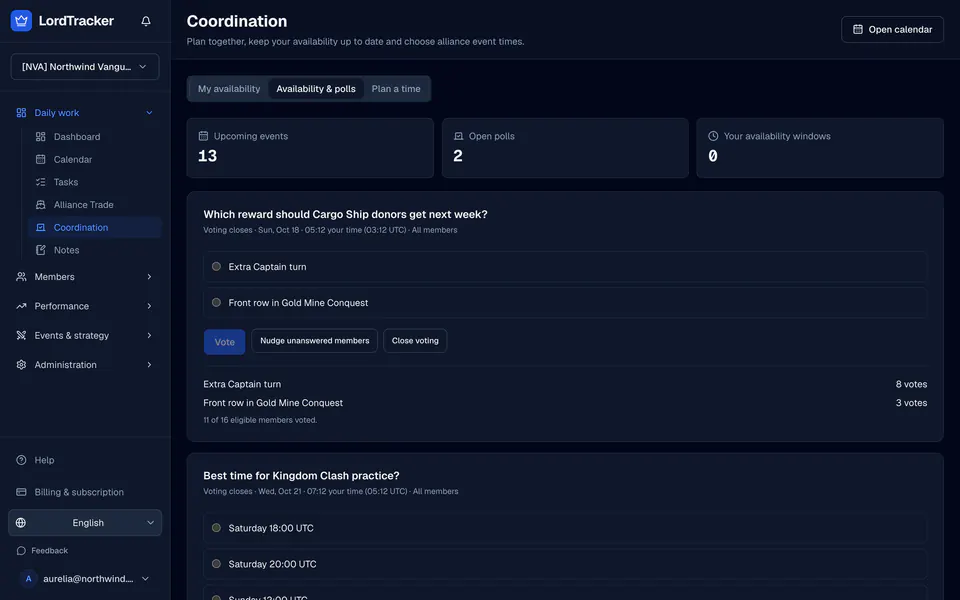
Coordination sits next to the calendar under Daily work. Use it before you publish an event: ask the alliance a question, or check who is usually online at the time you have in mind. Members answer through their own verified Lord link.
1. Collect usual availability
Members open My availability in Coordination or on My Lord and save the weekday hours when they can usually play, in UTC. An end of 00:00 means the end of that day; a window that runs past midnight is split across two days. Saving availability never signs anyone up or selects them for anything.
2. Preview a proposed time
Officers enter a proposed time and an audience and see each Lord as available, partial, unavailable or unknown, based on their usual availability and recorded absences. A member who has not saved availability, or has no linked Lord, stays unknown and is not blocked. A preview shows when it was checked and changes nothing, so refresh it before you decide.
3. Create a poll
Press Create poll.
- Write the question and between 2 and 12 options.
- Choose the audience: all members, officers, or Lords you select.
- Set a deadline within the next 30 days.
The calendar shows a small link with the number of open polls, so members find them.
4. Vote and follow the results
Each member has one vote and can change it until the deadline. Results count only members who are still eligible, show the totals and each member's own answer, and never list who voted for what. A tie is shown as a tie for officers to settle. Officers can close voting early.
5. Nudge once
Nudge unanswered members asks for confirmation and then sends one notice to each member who has not voted. It never sends a second notice for the same poll, and members who turned off in-app notices are skipped.
6. Turn the answer into an event
Once you have a time, create the event in the calendar with the winning time and the right audience. The calendar guide walks through sign-up slots, selection and attendance.