Top Lords Cargo Ship Captain Guide
Set up Alliance Trade for the Standard Cargo Ship: confirm docks, build Captain pools, choose Push and Save rules, then save and post the week.
Alliance Trade plans the Captain of your Standard Cargo Ship and its escorts for every day. Officers set the rules once and check the week; members read the result. Passengers and cabins are drawn in the game, so LordTracker never assigns them.
1. Confirm the ship and the docks
Open Alliance Trade under Daily work, then Trade rules. A setup checklist stays at the top of the page until the ship, at least one Shipping Dock and the escorts are ready.
- Under Rules and pools, confirm that your alliance has the Standard Cargo Ship. This is one lasting setting, not a daily check; turn it off only if your alliance loses the ship.
- Set the active weekdays, the reset hour, the preparation time, the minimum alliance size, the hours a Lord must have been in the alliance, the number of escorts and the daily Mega Express Cargo Ship limit.
- Open Lord eligibility. Tick every Lord whose Shipping Dock is unlocked and correct join times you know. Mark all unlocked ticks the whole table. Save eligibility saves every changed row at once.
The defaults are at least 20 alliance members, 24 hours in the alliance, preparation from 00:00 server time for 4 hours and at most 2 Mega Express Cargo Ships a day. Change any of them to match your alliance.
2. Build the escort rotation
Add the Lords who may escort to the Escort pool. Lower priority numbers come first. Every saved day moves one continuous rotation on and skips the day's Captain, Lords who are absent during preparation and Lords without an unlocked Shipping Dock.
3. Create Captain pools
Open the Schedule tab. A pool is a named group of Lords who may captain on the days that use it. Create up to 20, for example:
- Top hitters: last week's top 12 VS, ranks R2 to R4.
- Officers: Lords you choose by name.
- Donors: at least 60,000 donations last week.
A pool can filter by chosen Lords, last week's top VS ranks, allowed ranks, a rolling VS minimum, fixed VS and donation minimums or the scoring week's reward goal, last week's individual targets, battle no-shows and a cooldown in weeks. Choosing Lords by name and ticking nobody means nobody can captain from that pool.
4. Give each weekday a method
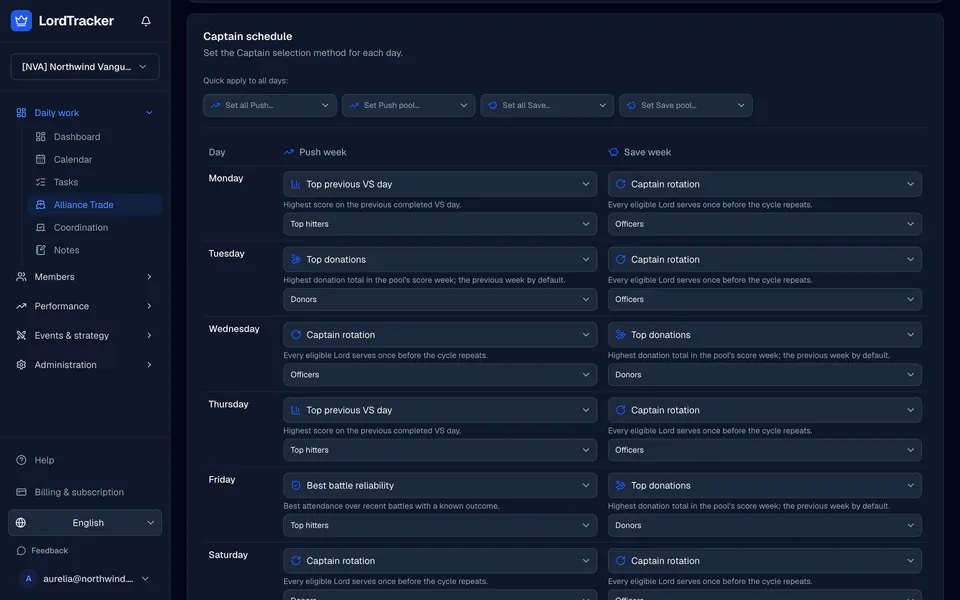
For every weekday, choose a method and a pool:
- Captain rotation: every eligible Lord serves once before the cycle repeats. A day without a method uses it.
- Top previous VS day: the pool's best score on the previous completed VS day.
- Top donations: the pool's highest reviewed donation total for the score week.
- Best battle reliability: the best recent battle attendance in the pool.
- Manual choice: the day waits for an officer.
Quick apply to all days sets a whole column at once. Save schedule asks for confirmation: the rules apply to previews and new saves, and days that are already saved keep their Captain.
5. Decide how Save weeks work
Turn on Separate Save-week rules to give each weekday a Save cell next to its Push cell. By default a week follows its VS week mode: Save means Save, and Push or Normal means Push. The banner at the top of the Trade page shows which rules apply this week; an officer can set Push or Save for Trade alone there, and the VS plan does not change.
6. Save the week and post the roster
Open Week Ahead. Every day shows its Captain, its escorts and a status such as Saved, Preview or Manual selection required. Choose a Captain where a day needs one, then press Save all days. You can save this week and next week. If the forecast changed while you were looking, nothing is saved and the page shows the new forecast so you can check it and save again.
Today shows the day's saved crew. When an officer opens it during the preparation window, today's roster is saved once and the crew is told in the app. Copy roster copies the day for your alliance chat, and Copy all on Week Ahead copies the whole week.
7. Correct the history
Use History to record a past day with Record past day, or to correct a saved one. Export and import history as CSV with a preview of new, replaced and unchanged days, and undo an import within 24 hours in the Activity log. Delete day removes a single saved day; Clear history removes all of them after you type the alliance name.
The Cargo Ship planner page summarises what the planner does, and the VS tracking guide explains the scores that score-based methods read.